
🔢 Using Account Numbers from QuickBooks in Books Review
If Use Account Numbers is enabled in QuickBooks, Client Hub will now display those account numbers in Books Review. This helps your team quickly identify the exact accounts being used and keeps your chart of accounts consistent with what appears in QuickBooks.
Once enabled in QuickBooks, account numbers will appear automatically in the Account and Suggested Account columns throughout Books Review. Account numbers will also display in other areas of Client Hub where QuickBooks accounts are shown, such as QuickBooks Items, helping maintain consistency across the platform.
⚙️ Ensuring Account Numbers Appear in Client Hub
If your QuickBooks company already had an existing integration with Client Hub before enabling account numbers, you may need to refresh the connection so the updated account list syncs properly.
Follow these steps:
1️⃣ Perform a Hard Refresh of Your Browser
Start by performing a hard refresh to ensure your browser loads the latest version of Client Hub.
- Windows: Ctrl + Shift + R
- Mac: Command + Shift + R
2️⃣ Refresh the QuickBooks Connection
Navigate to:
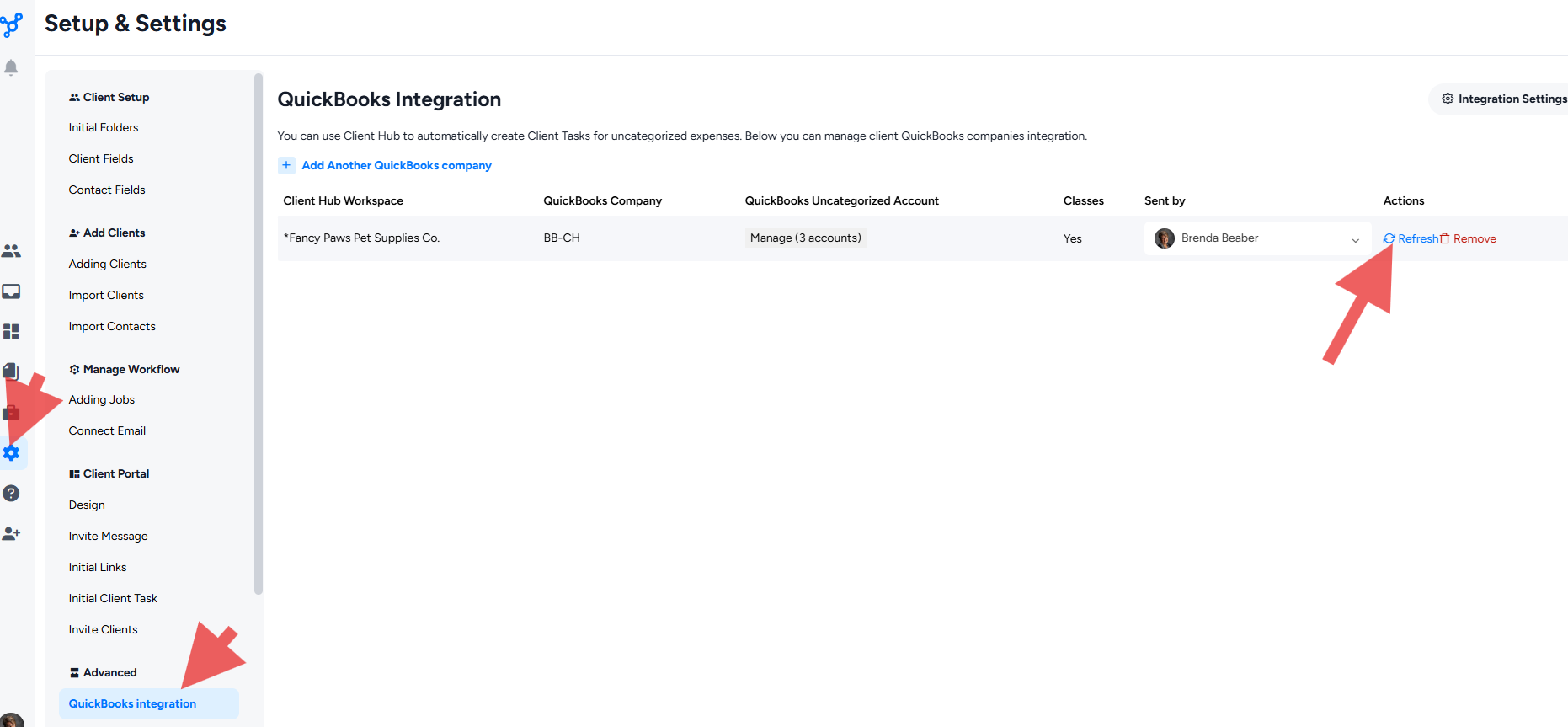
Settings > Advanced > QuickBooks integration
Then click Refresh in the Actions column for the connected company.
3️⃣ Refresh Lists Inside Books Review
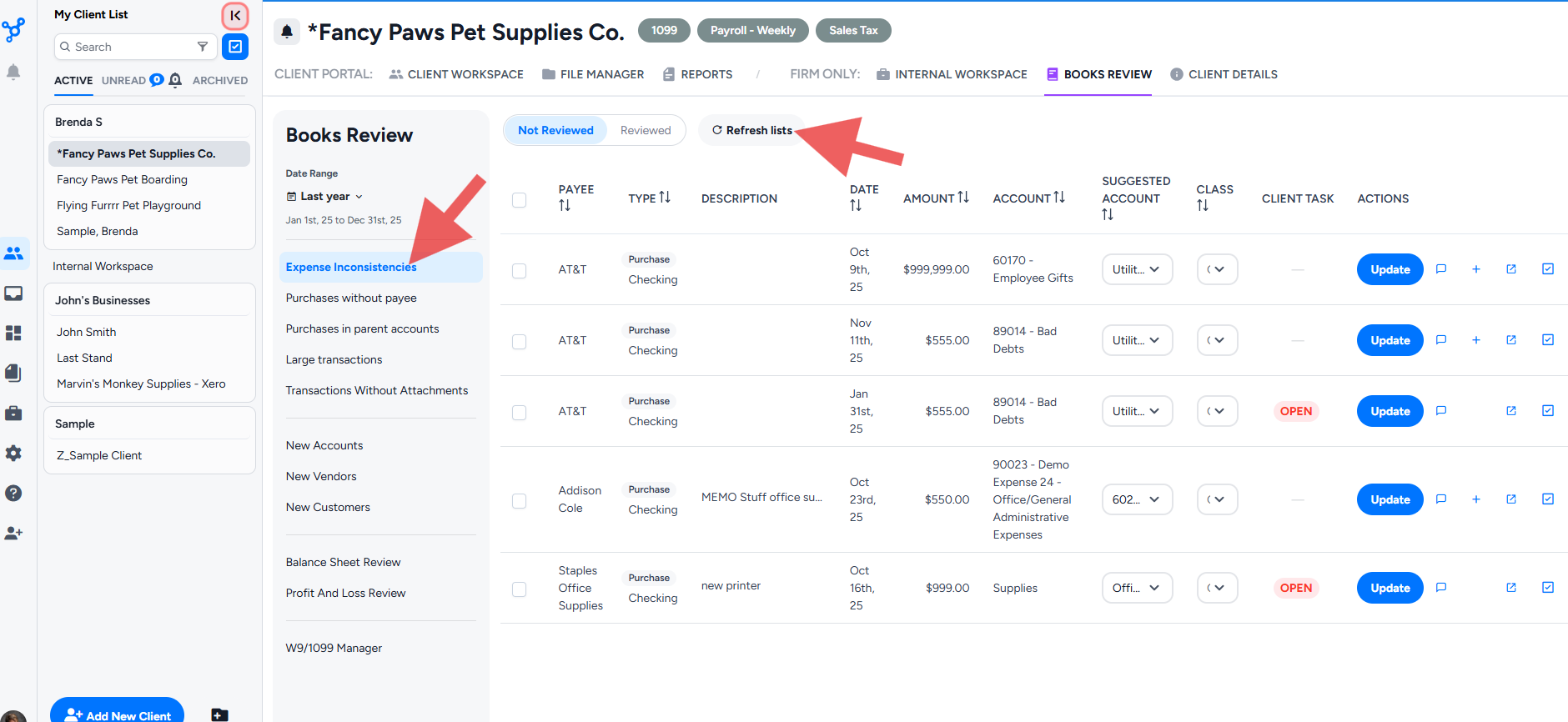
Next, open the client workspace and navigate to:
Books Review
Click Refresh lists to update the synced QuickBooks data, including Accounts, Classes, and Payees.
4️⃣ Perform One Final Hard Refresh
After refreshing the QuickBooks lists, perform one more hard refresh of your browser to ensure the updated account numbers load everywhere in Books Review.
- Windows: Ctrl + Shift + R
- Mac: Command + Shift + R
Once completed, QuickBooks account numbers will display alongside account names throughout Client Hub, making it easier for your team to review and categorize transactions with confidence.